
Free preview · Canada
How to track your self-employed income and expenses in Canada (with Google Sheets)
This is a short, free look at how the MapleTally tracker works for Canadian freelancers and sole proprietors. Income, expenses and sales tax live in one Google Sheet that you own.
What you need
You need a free Google account and a browser on a computer. There is no Excel file and nothing to install. After you make a copy, the sheet sits in your own Google Drive. MapleTally never sees the numbers you type.
Make your own copy
Open the template link from your purchase and sign in to Google. Choose File, then Make a copy. Name it something you will recognise, such as “MapleTally 2026 – My Business”, pick a folder, and choose Make a copy.
Always work in that copy. The original template is shared, so edits there can be lost. Keep one copy per business per tax year.
Before you clear anything, look through the SAMPLE rows. They show how one invoice moves from the Income tab into the monthly and year-end summaries.
Set up the Start Here tab
Open the Start Here tab and answer the setup questions in column B. You will enter your business name, the tax year, and the fiscal year start. Most people use January 1 to December 31. The year end fills in from the start date you enter.
Choose your province or territory. That choice sets the default sales-tax rate. Say whether you are registered for GST/HST, and whether QST or PST applies where you do business. Each question has a plain-English note and a link to the official help page.
When the setup looks right, clear the sample rows. Clear the contents only. Never delete rows or columns, because the formulas sit beside and below the sample data. The tracker supports the regular GST/HST method, not the Quick Method.
Log an invoice
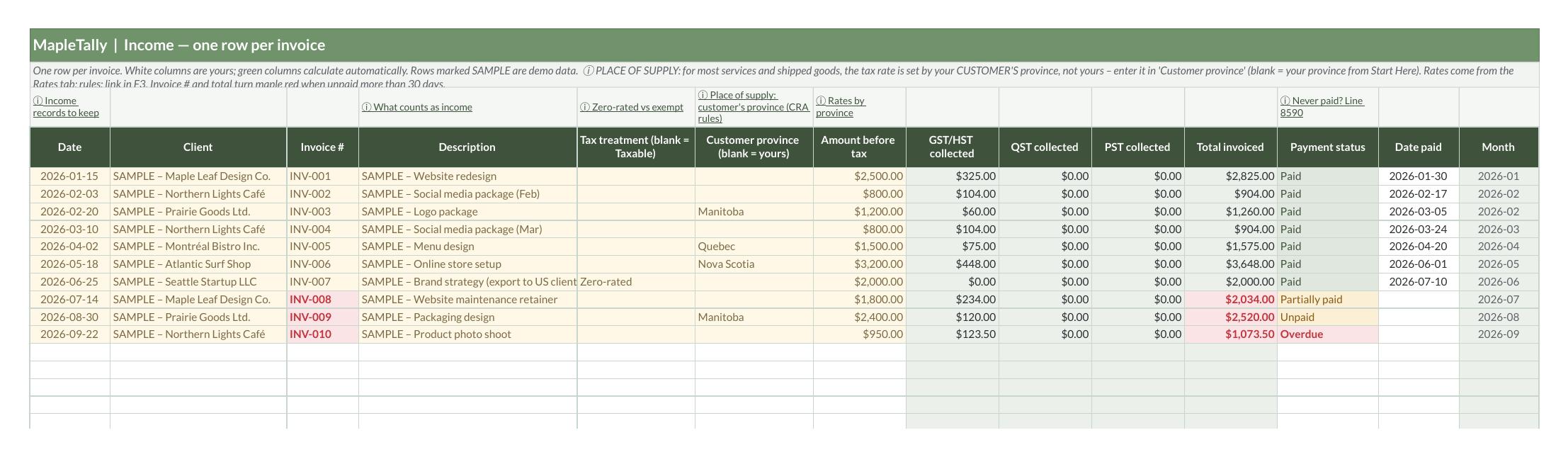
On the Income tab, use one row per invoice. Enter the date as YYYY-MM-DD. In Sheets, Ctrl and semicolon (or Cmd and semicolon on a Mac) inserts today’s date. Then add the client, the invoice number, a short description, and the amount before tax.
Leave Customer province blank when the customer is in your own province or territory. Fill it in only when the place of supply is somewhere else, because that can change the sales-tax rate. The green columns then calculate GST/HST, QST, PST and the invoice total for you. You do not type those figures.
Set Payment status to Unpaid when you send the invoice. Change it to Paid and enter the date paid when the money arrives. Overdue invoices are highlighted so they are easy to spot. Income counts in the month you invoiced, whether or not it has been paid.
Log an expense
On the Expenses tab, use one row per receipt. Enter the date, the vendor, a short description, and a T2125 category from the dropdown. Enter the total you paid, including tax, and the GST/HST shown on the receipt.
Use the business-use percent only when the purchase is partly personal. A phone you use about 70 percent for work is a common example. Type the full receipt amounts. The tracker applies the 50 percent meals limit, and it applies your vehicle business-use percent, so you do not have to do that math on paper.
Here is a simple lunch example. A $90.40 client meal includes $10.40 of HST. The sheet records a $5.20 input tax credit and a $40.00 deduction. Keep the receipt. The sheet is your log, not a replacement for it.
How GST/HST is calculated
If you are registered, tax on each invoice is the amount before tax times the rate on the Rates tab. The rate comes from your province or territory, or from your customer’s when the place of supply is different. GST/HST you paid on business expenses comes back as input tax credits, often called ITCs.
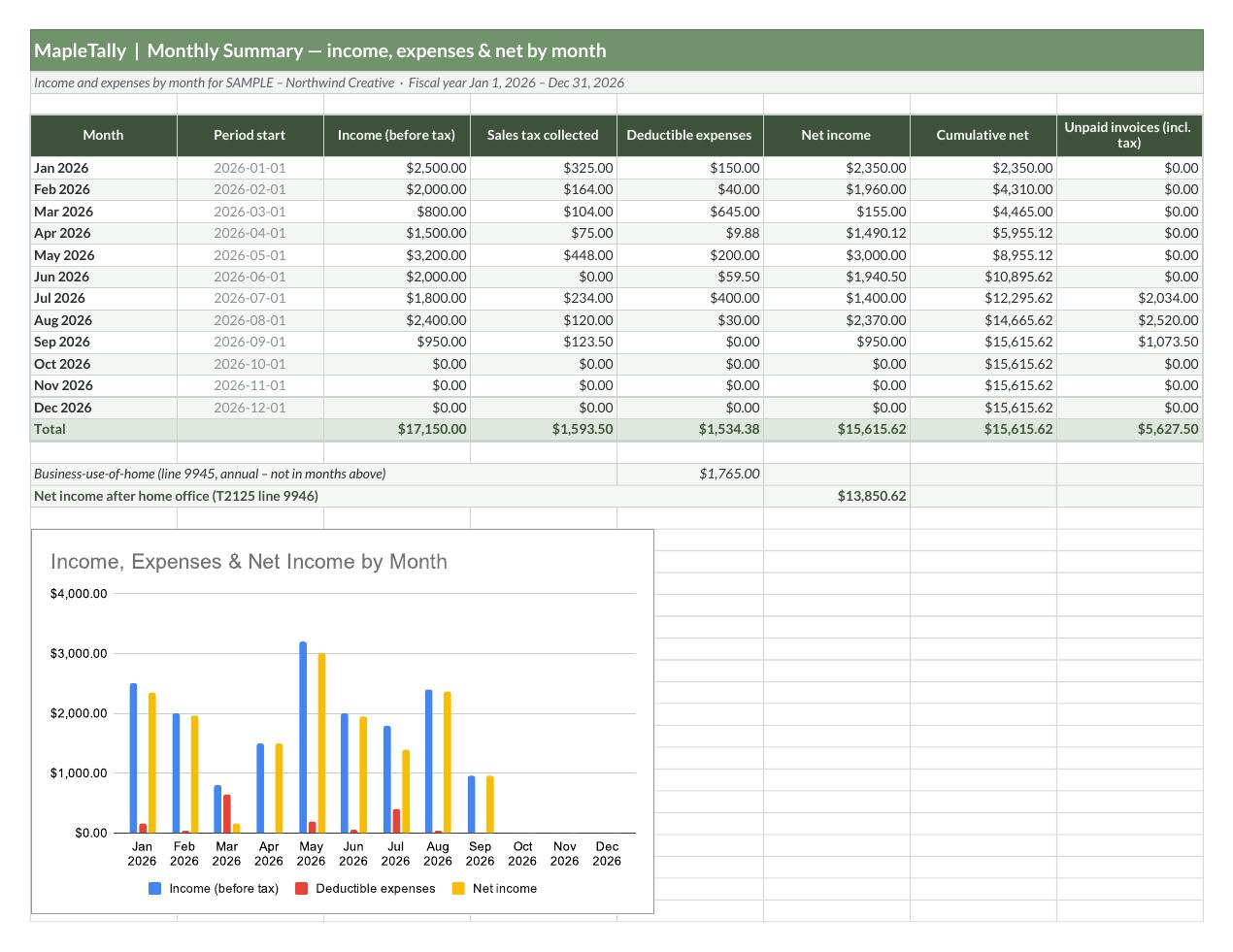
The GST-HST Summary subtracts those credits from the tax you collected. It does this for each quarter and for the year. A positive balance means you owe. A negative balance means a refund. The same summary watches the $30,000 small-supplier threshold, so you can see when registration may matter.
If you are not registered, the sheet does not calculate sales tax on your invoices. Tax you pay on receipts stays part of the cost instead of becoming a credit.
Where to find your T2125 totals
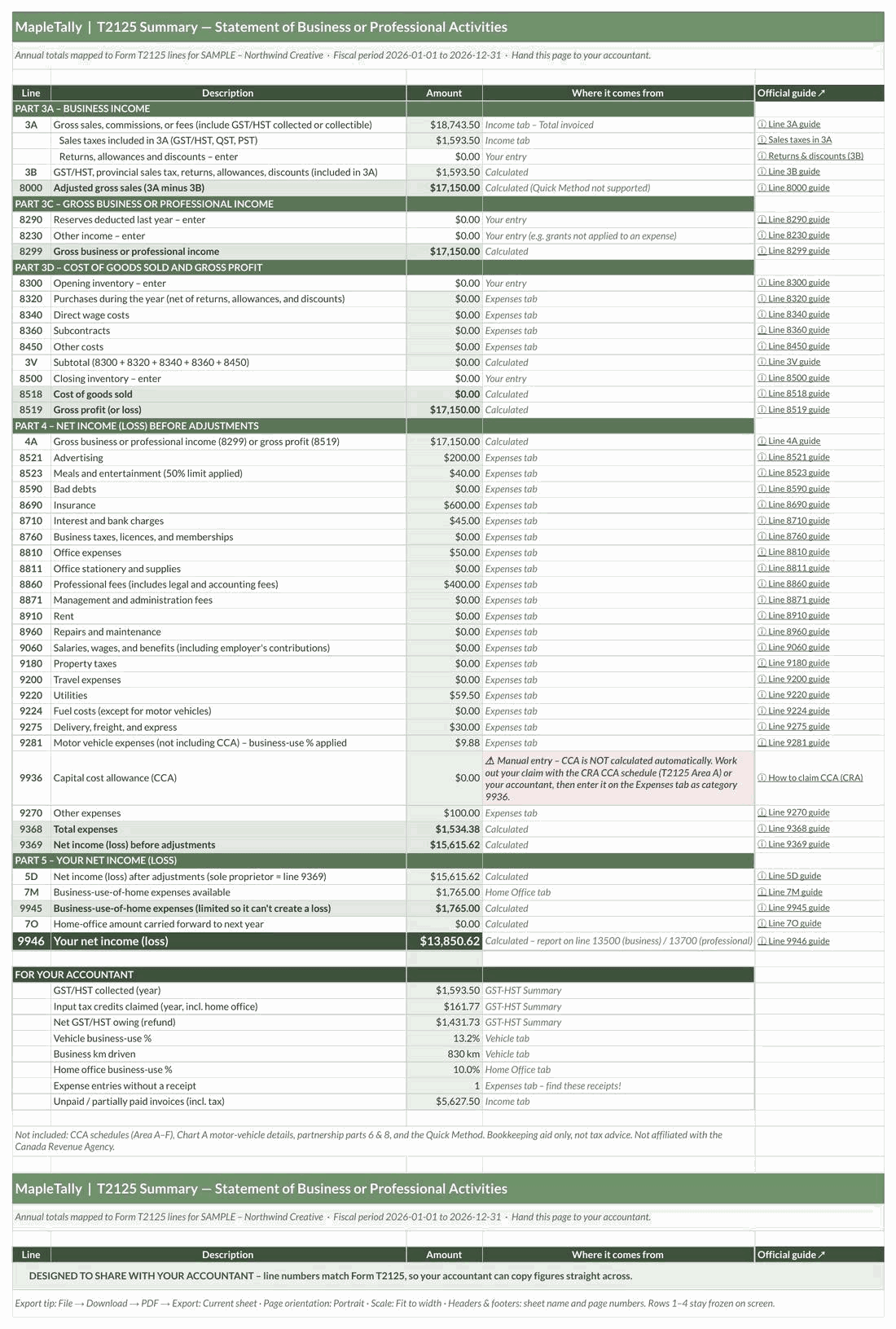
The T2125 Summary tab adds up every row by Form T2125 line. Meals land on line 8523, motor vehicle expenses on line 9281, and business-use-of-home on line 9945. You will also see gross income, total expenses and net income in one place.
Download the tab as a PDF for your accountant, or read it while you fill in T2125 yourself. The line numbers match the form, which makes the hand-off shorter.
Not tax advice. MapleTally is a bookkeeping aid only. It is not tax, legal or accounting advice, and it is not affiliated with the Canada Revenue Agency or Revenu Québec. Check your figures with the CRA or a qualified accountant before you file.
Get the full guide
The full 47-page step-by-step guide comes with the tracker.